Remove From Video: Erase Objects & People with AI
Remove unwanted objects, people, or elements from your videos instantly. Our AI-powered tool erases anything while maintaining quality and natural motion.
What is AI Video Object Remover?
AI-Powered Object Removal
Erase any unwanted elements using advanced AI. Simply describe what you want to remove — people, objects, text, or logos — and watch them disappear while the background fills in naturally.
Temporal Consistency
Our technology tracks objects across frames and maintains visual consistency. No flickering, no artifacts — just smooth, professional results that look like the object was never there.
Fast Processing
Get results in minutes, not hours. GPU-accelerated processing analyzes each frame and reconstructs the scene quickly, so you can get your edited video fast.
Why Choose Our AI Video Eraser?
Industry-leading AI technology to erase any unwanted content with professional results
Erase Anything Instantly
Whether you need to remove a person walking through your shot, an unwanted logo, or distracting background elements — our AI handles it all. Just describe what to erase and let the AI do the work.
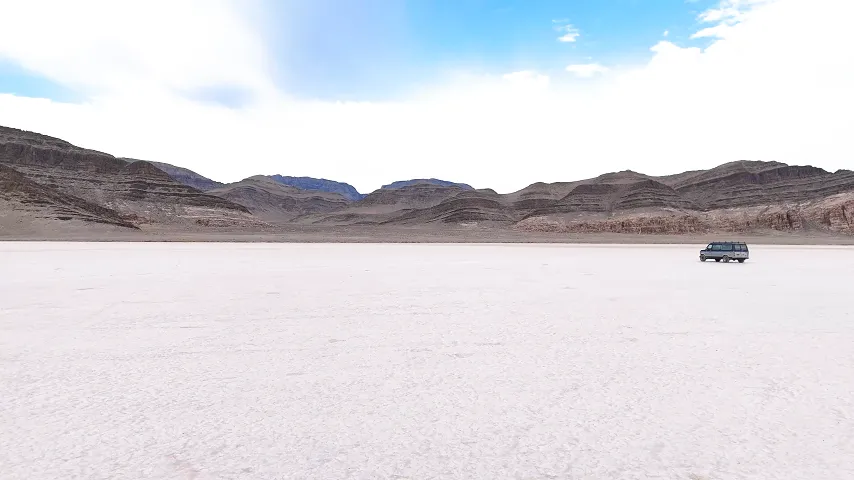
Smart Background Reconstruction
When you erase an object, our AI intelligently fills in the gap. It analyzes surrounding pixels and motion to reconstruct a natural-looking background that blends seamlessly.
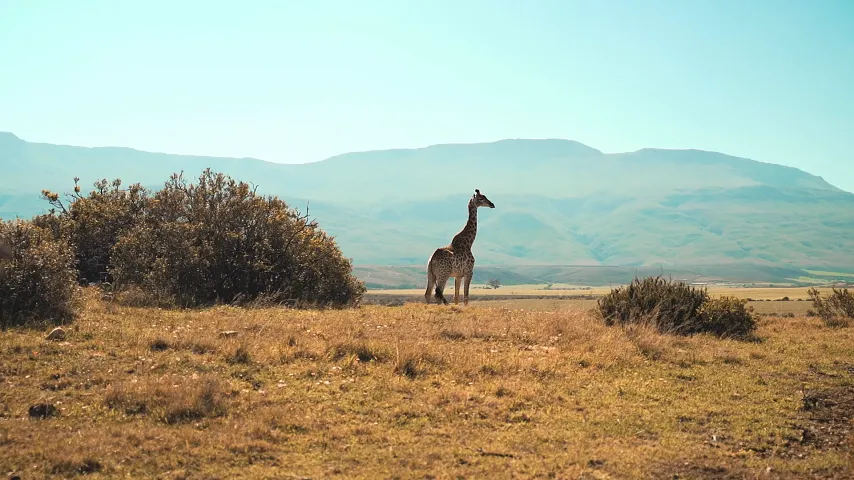
Preserve Video Quality
Erase objects without losing quality. Our AI maintains the original resolution, color accuracy, and frame rate. Your edited video looks just as sharp as the original.
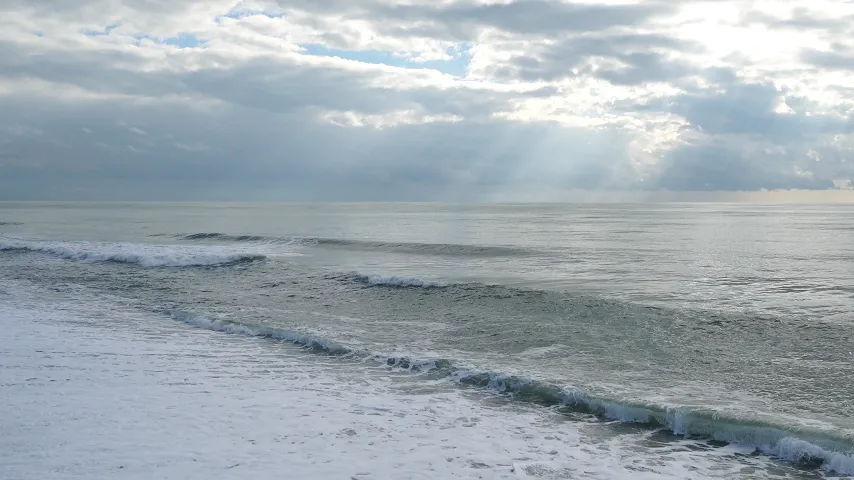
No Manual Masking Required
Unlike traditional tools, you do not need to manually mask each frame. Our AI automatically detects and tracks the object throughout the entire video.

How to Remove From Video in 3 Simple Steps
Erase unwanted objects or people from any video using our AI tool
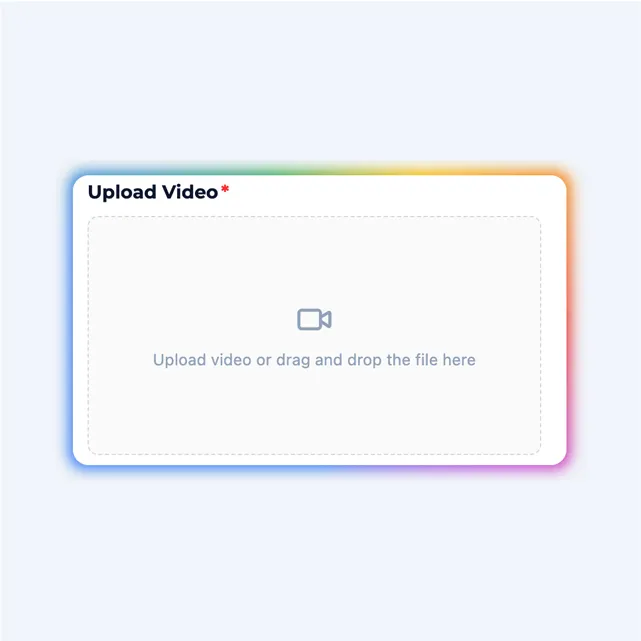
Upload Your Video
Upload the video you want to edit. We support MP4, MOV, AVI, MKV, and WebM formats.
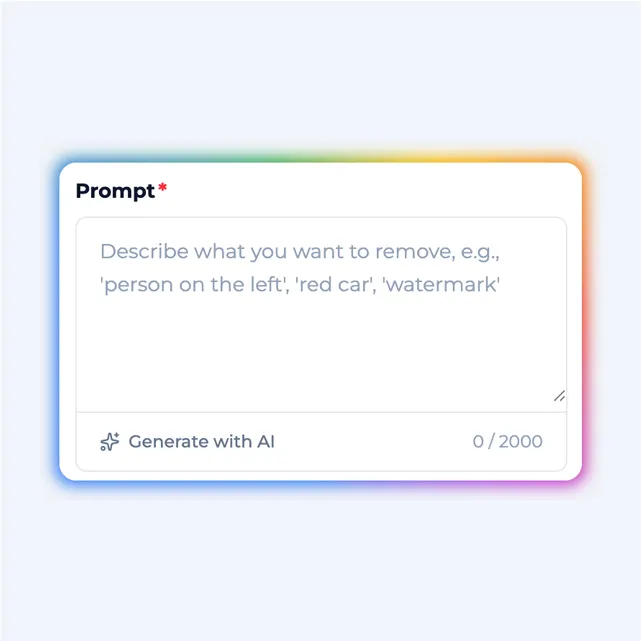
Describe What to Remove
Tell the AI what you want to erase — a person, object, text, or any element. Be specific for best results.
Download Clean Video
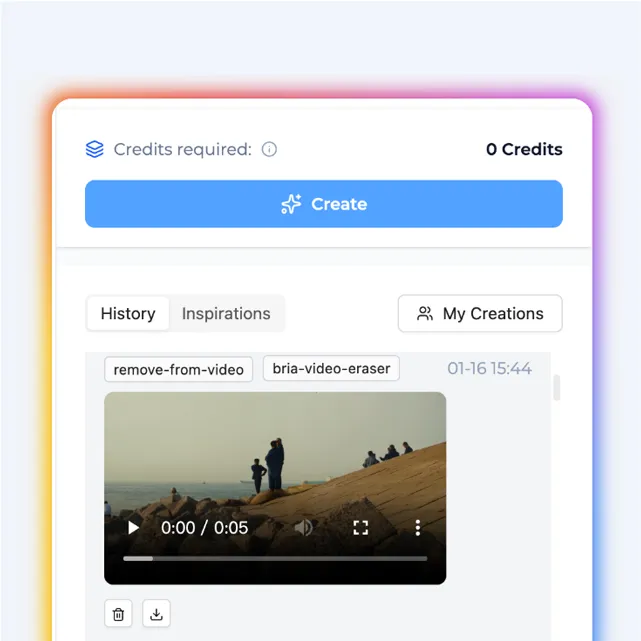
Preview your edited video and download. The unwanted element is gone, and your result looks natural.
Remove From Video Use Cases
Our AI tool helps creators, filmmakers, and businesses clean up their footage
Content Creators
Erase unwanted passersby, distracting objects, or mistakes. Clean up your YouTube videos, vlogs, and social media content without reshooting.
Real Estate & Property
Erase personal items, clutter, or people from property tours. Create clean, professional real estate videos that showcase spaces perfectly.
Film & Production
Erase crew members, equipment, or unwanted elements that accidentally appeared in shots. Fix mistakes in post-production without expensive reshoots.
Marketing & Advertising
Erase competitor logos, outdated branding, or distracting elements. Create clean promotional videos that focus on your message.
Remove From Video FAQs
Can I remove objects, people, text, and watermarks from video?
Yes! You can erase almost anything — people, objects, text, logos, watermarks, or any unwanted visual elements. Our AI analyzes each frame and seamlessly removes the selected content while preserving video quality.
How does the AI object removal work?
Our remove from video tool uses advanced AI to detect and track objects across frames. Simply describe what you want to erase, and the AI automatically identifies and removes it while filling in the background naturally.
Will removing objects affect video quality?
No, our technology maintains high visual quality. The AI reconstructs the background seamlessly, ensuring temporal consistency so the result looks natural without artifacts or flickering.
How long does it take to remove objects from video?
Processing time depends on video length and complexity. Typically, erasing objects from a 10-second video takes 1-2 minutes. You will receive a notification when your task is complete.
Can I remove multiple objects at once?
Yes, you can describe multiple objects in a single prompt. The AI will identify and erase all specified elements simultaneously from your video.
What video formats are supported?
This tool supports all major formats including MP4, MOV, AVI, MKV, and WebM. Your processed video will be exported in high-quality MP4 format.
Is there a video length limit?
Free users can process videos up to 30 seconds. Pro users can remove from video up to 2 minutes, and Enterprise users have extended limits.
Can I use this for commercial projects?
Yes, all videos processed with paid plans come with full commercial rights. Use your edited videos for marketing, advertising, YouTube, and any commercial purposes.
How accurate is the object detection?
Our AI achieves high accuracy in detecting and tracking objects. For best results when you remove from video, use clear descriptions of what you want to erase.
Are there watermarks on exports?
Free plan exports include a small watermark. Pro and Enterprise plans export videos without any watermarks, giving you clean, professional results.
Ready to Remove From Video?
Erase unwanted objects, people, or elements from your videos with AI. Start for free today.