How to Remove Objects From a Video (and Make It Look Like They Were Never There)
I once lost an entire Sunday to a guy in a hi-vis vest.
He wasn't doing anything wrong. He just wandered through the back of a six-second clip I'd shot of a client's storefront — hands in his pockets, coffee in one of them, completely unaware that he was about to become my whole afternoon. Everything else about the shot was right. The light, the sign, the little reflection in the window. And then, at around the three-second mark, there he is, strolling across the frame like he pays rent.
I couldn't reshoot. By the time I noticed him back at my desk, the good light was long gone. So I did what people did back then: opened After Effects and started masking.
If you've never rotoscoped by hand, here's the gist. You trace an outline around the thing you want gone, one frame at a time, tugging the shape as it moves, and then you try to paint back whatever was hiding behind it. Six seconds is about a hundred and eighty frames. The roto brush takes some of the sting out — until the guy's arm passes in front of a lamppost and the mask starts to "boil," that crawling, shimmering edge that quietly tells every viewer this was messed with. Two hours in, my little vest problem looked worse than when I'd started.
Anyway. I bring it up because that Sunday is a funny story now instead of a recurring one, and the reason is simple: you don't have to do any of that anymore. You can remove from video almost anything — a person, a parked car, a logo, a stray hand, a timestamp burned into the corner — and hand the tedious part to AI.
Let me walk you through how it actually works, where it shines, and the handful of things nobody tells you until you've already messed one up.
Why this used to eat your whole weekend
The core problem is that a photo is one image, and a video is hundreds of them that all have to agree with each other.
Delete a trash can from a single photo and you're done — you fill the hole once, it looks fine, you move on. Delete that same trash can from a five-second clip and now you've got roughly 150 holes to fill, and every single one has to line up with the frames on either side of it. Get one wrong and the patch flickers. The brain is disturbingly good at catching that flicker even when the viewer couldn't tell you what's off.
Old-school visual effects had a trick for this called a "clean plate" — you'd film the exact same shot with nobody in it, then use that empty background to cover the gaps. Great if you planned ahead. Useless for the 99% of footage where you only noticed the problem afterward, on a laptop, at 11pm.
That's the whole reason removing things from video felt like a specialist's job for so long. It wasn't the idea that was hard. It was the sheer, grinding repetition of doing the same fiddly fix a hundred and fifty times without letting the seams show.
What changed: AI that watches the whole clip
The shift is that modern AI doesn't treat your video as a stack of unrelated pictures. It watches the thing move.
When you point it at an object, it tracks that object across every frame — following it as it turns, shrinks into the distance, or slips behind something else. Then it fills the empty space using a technique usually called inpainting, and here's the clever part: it borrows. If the background hidden behind that walking guy in frame 60 is clearly visible in frame 40, the AI pulls from frame 40 to reconstruct what should be there. It's essentially building its own clean plate on the fly, stitched together from every angle the footage happens to give it.
The payoff is temporal consistency — a stiff phrase for a simple idea. It means the patched area doesn't shimmer or crawl from one frame to the next. No boiling. It looks like the object was genuinely never in the shot, because the tool reasoned about the whole clip at once instead of guessing at each frame in isolation.
You don't do the tracking. You don't do the masking. You describe what you want gone, and the AI figures out the rest.
What you can actually pull out of a video
People ask me "can it remove X" for a surprisingly wide range of X. The honest answer is: more than you'd think.
- People. The photobomber, the ex you'd rather not re-edit around, the coworker who wandered into your product demo. This is the most common request and the one AI handles best.
- Objects. Cars, trash cans, road cones, a water bottle you forgot to move off the table, power lines cutting across an otherwise gorgeous skyline.
- Text and captions. Old subtitles, a date stamp, a "SOLD" banner, on-screen graphics from a previous edit that you want gone before repurposing the clip.
- Logos and watermarks. Branding you no longer want, an expired sponsor bug, a watermark on footage you own and have the right to clean up. (More on that word "own" in a second.)
One thing beginners almost always forget: the shadow and the reflection. If you delete a person but leave their shadow sliding across the pavement, or their outline ghosting in a shop window, everyone watching will feel that something's wrong even if they can't name it. When you remove from video, think of the thing and everything it casts. Mention the shadow in your description. It's the single biggest tell between an edit that fools people and one that doesn't.
How to remove from video in three steps
Enough theory. Here's the actual flow, which takes about as long to do as it does to read.
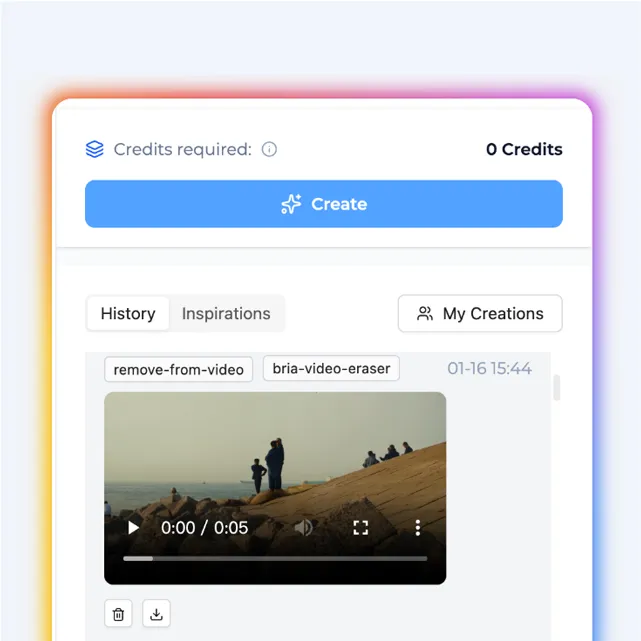
1. Upload your clip
Drop in the video you want to fix. MP4, MOV, AVI, MKV, and WebM all work, so you shouldn't have to convert anything first.

A small tip before you upload: if your problem only shows up in the middle of a long clip, trim down to just that section first. Shorter clips process faster and give you a cleaner result, and you can always stitch the fixed piece back into the full edit afterward.
2. Describe what to erase
Tell the AI what's got to go. This is the part where being specific pays off. "The person on the left in the red jacket" beats "the person" every time, especially when there's more than one candidate in frame.

If you want two things gone — say, a road sign and the cyclist next to it — you can name both in the same prompt and let the AI handle them together.
3. Download the clean version
Give it a minute or two. A ten-second clip usually lands in a couple of minutes, depending on how busy the frame is. Preview the result, check the frames where your object passed behind something else (that's always the trickiest spot), and download.
That's genuinely it. No masking, no keyframes, no Sunday.
A few things I wish someone had told me
Most of these I learned the annoying way, so you don't have to.
Watch the occlusion frames. The hard moments aren't when your object is out in the open — those are easy. It's the split second when it passes behind a pole, a railing, a passing car. When you review the result, jump straight to those frames first. If anything looks off, it'll be there.
Motion blur is a friend, and a fast pan is not. A little motion blur actually helps hide seams. But if your camera is whipping around, the background never sits still long enough for the AI to borrow a clean reference of it — those shots are the toughest, so keep your expectations honest.
Clean first, enlarge second. If you're planning to upscale the video too, do the removal on the original footage and upscale afterward. Do it the other way around and you'll sharpen the exact artifacts you were trying to bury.
If the whole background is the problem, that's a different tool. Sometimes you don't want to erase one thing — you want to drop your subject onto a completely new scene. That's not object removal, that's a background remover. Same neighborhood, different job.
About watermarks — keep it to footage you own. The tool doesn't care, but you should. Cleaning a logo off your own recording, or a caption off a clip you shot, is fair game. Stripping a creator's mark off their work so you can pass it off as yours is a different thing entirely, and not one I'd put my name near.
AI vs. the old-school options
To put it plainly, here's how the three real choices stack up when you need something gone from a shot.
| Reshoot it | After Effects roto | AI removal | |
|---|---|---|---|
| Time | Hours (if you even can) | 1–3 hours per short clip | A couple of minutes |
| Skill needed | A whole crew | Real editing chops | Type a sentence |
| Cost | Highest | Software + your day | Free to start |
| Risk | Light's gone, moment's gone | Boiling edges, visible seams | Occasional retry on hard frames |
Reshooting is still the gold standard when it's actually possible. It usually isn't. That's the whole point.
Where people actually use this
Not everyone is chasing a guy in a vest. A few of the situations I see most:
Real estate folks clean up listing walkthroughs constantly — a cluttered counter, the family photos on the fridge, the neighbor's car parked out front. A tidy, distraction-free space just shows better, and you can't exactly ask the current owners to move out for the afternoon.
Creators use it to save takes they'd otherwise scrap: the delivery driver who walked through the perfect b-roll, the boom mic that dipped into the top of frame, the water bottle nobody noticed until the edit.
Small production crews use it for the slip-ups that are almost a rite of passage — a crew member caught in a mirror, a safety cone at the edge of a hero shot, a modern streetlight in a period piece.
And plenty of people just want to repurpose their own footage — pulling an old on-screen price, an expired promo caption, or last season's branding off a clip before it goes back out. All content they made. All fair to clean up.
Frequently Asked Questions (FAQ)
Can I remove a person from a video and still keep the background moving?
Yes. The AI tracks the person across every frame and rebuilds whatever was behind them, so a panning shot or a moving background stays intact. It reconstructs the hidden area using the frames where that background is actually visible.
Will it look obviously edited?
Usually not, as long as you remember the shadow and reflection and give the object a clear description. The result holds up best on steady shots; very fast camera pans are the hardest case because the background never stays still long enough to reference cleanly.
Can I remove text or a watermark from a video?
You can — subtitles, timestamps, on-screen captions, logos, and watermarks all come off. Just keep it to footage you own or have the rights to. Cleaning your own clip is fine; stripping someone else's mark off their work isn't.
How long can the video be, and how long does it take?
Free processing covers clips up to about 30 seconds, with longer limits on paid plans. A typical ten-second clip finishes in a minute or two, depending on how much is happening in the frame.
Do I need After Effects or any editing skills?
No. That's the entire point. If you can upload a file and type a sentence describing what to erase, you can do this — no masking, no keyframes, no timeline gymnastics.
Go fix the clip you gave up on
Somewhere on your drive there's a shot you quietly wrote off — the one with the stranger in the background, the mic in frame, the logo you can't unsee. For years the sensible move was to shrug and reshoot, or just live with it.
That's not the sensible move anymore.