How to Upscale Low-Quality Video to 4K Online (Free & Fast)
Ever found an old video that means the world to you—but it looks blurry, pixelated, and honestly hard to watch? Maybe it’s a childhood memory, a wedding clip, or a TikTok draft that just didn’t come out sharp.
You’re not alone. Millions of people search for ways to fix blurry video every single day.
The good news? You don’t need editing skills or expensive software anymore. With an AI video upscaler, you can enhance video quality and turn low-resolution clips into crisp 4K videos in minutes.
One of the easiest tools to do this is AI Video to Video—an online, free, and fast solution made for real people, not tech experts.
Let’s break it all down, step by step.
Why Do Videos Look Blurry? (And How AI Fixes It)
Blurry videos usually come from one simple problem: missing data.
Older cameras, early smartphones, and compressed social media videos don’t capture enough pixels. When you stretch that video to a bigger screen, those missing pixels become obvious. Faces look soft. Text is unreadable. Details disappear.
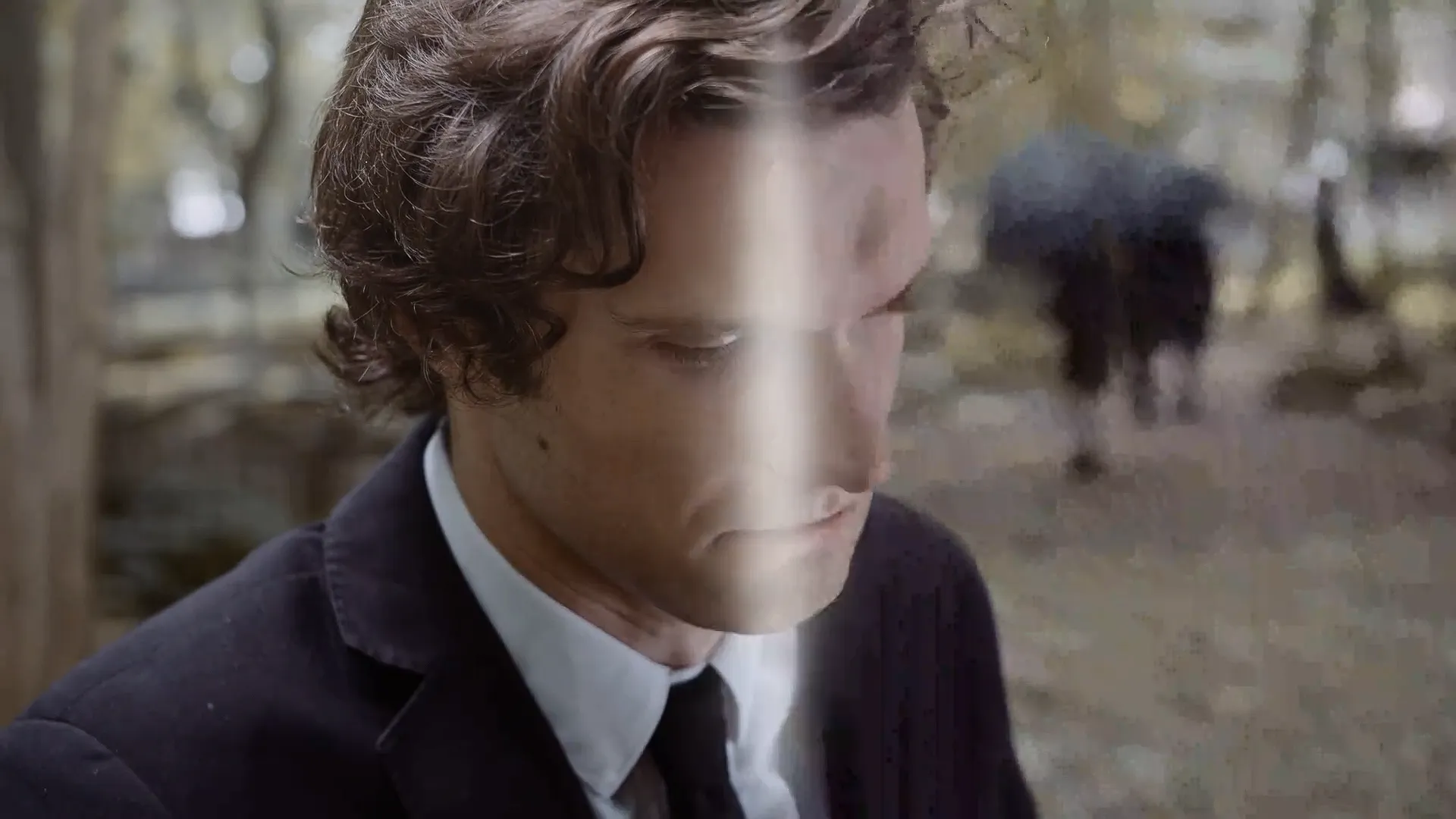
This is where an AI video upscaler changes everything.
Instead of just stretching pixels, AI analyzes each frame and rebuilds lost details. It recognizes faces, edges, motion, and textures. Then it predicts what should be there and fills in the gaps naturally.
In plain terms:
- Traditional upscaling = stretching a blurry image (looks bad)
- AI upscaling = rebuilding the image intelligently (looks crisp)
That’s why modern AI tools can enhance video quality in ways that felt impossible just a few years ago.
Step-by-Step Guide to Upscaling Video to 4K
Let’s walk through exactly how to upscale your video using our free tool. No jargon. No confusion.
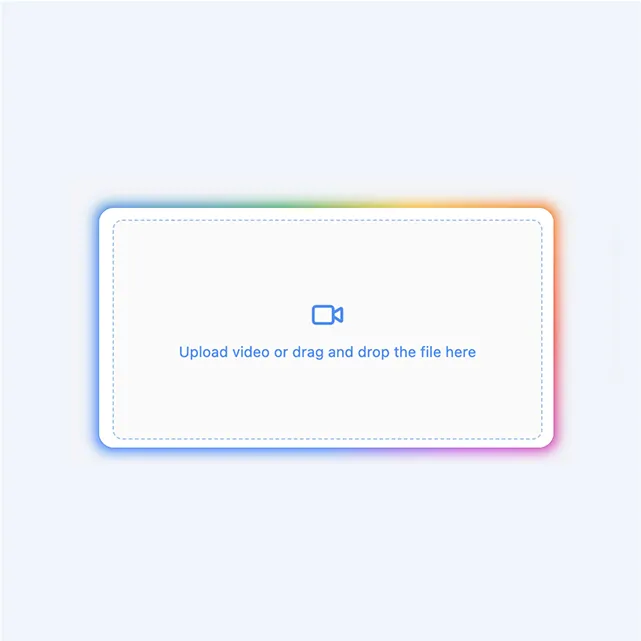
Step 1: Upload Your Video File
Head over to aivideotovideo.com/video-upscaler and upload your video.
Supported formats include:
- MP4
- MOV
- WebM
These formats cover almost everything—from phone videos to DSLR footage and social media downloads. You don’t need to install anything. Everything runs in your browser, which makes this a true 4k video converter online experience.
Step 2: Choose Your Upscaling Settings (2x vs 4x)
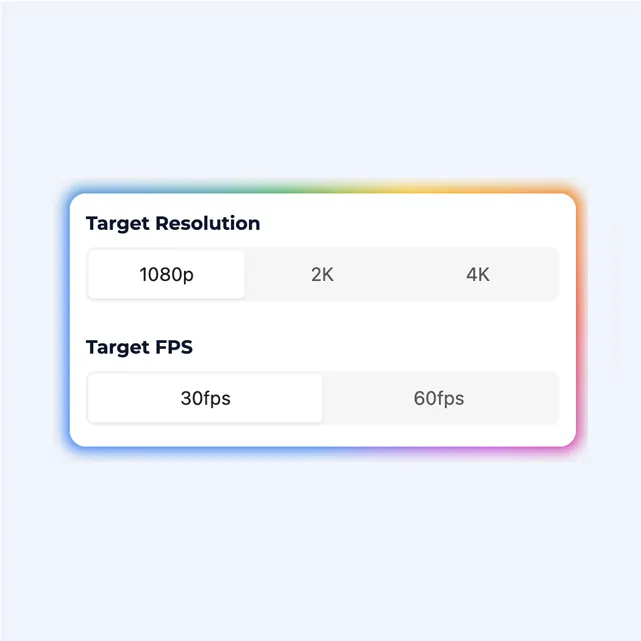
Once your video is uploaded, you’ll see resolution options. Here’s how to choose:
- 2x Upscale: Best for already decent videos (720p) that just need a boost.
- 4x Upscale (4K): Perfect when you want to restore old footage or fix very blurry clips.
If your original video is 1080p, selecting 4x will push it to Ultra HD clarity.
Step 3: Download Your Enhanced Video
Once processing starts, you don’t have to wait long.
Most videos are ready in just a few minutes. Since everything runs in the cloud, your computer doesn’t slow down or overheat. When it’s done, click download—and that’s it.
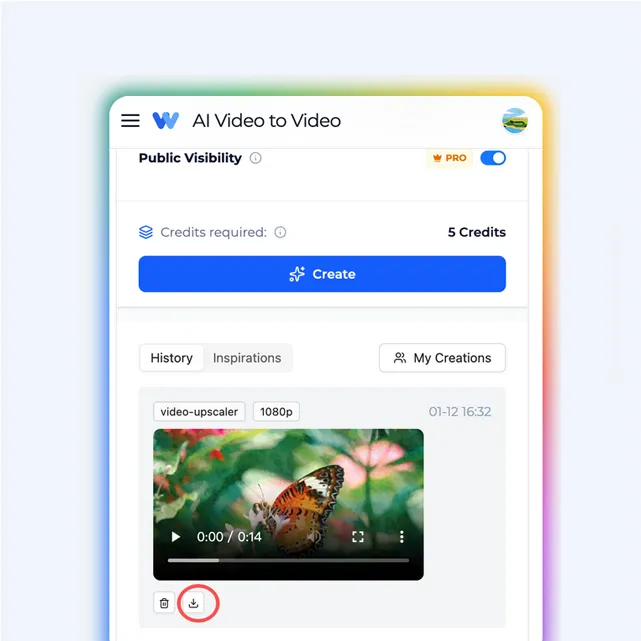
You now have a cleaner, sharper video that’s ready for TikTok, Instagram Reels, or your family archives.
Online AI Upscaler vs. Desktop Software (Comparison)
Not all upscaling tools are created equal. Let’s compare an online solution with traditional desktop software like Topaz.
| Feature | AI Video to Video (Online) | Traditional Desktop Software |
|---|---|---|
| Price | Free / Affordable | Expensive License ($200+) |
| Installation | None (Browser-based) | Large Download Required |
| Speed | Fast Cloud Server | Slow (Depends on your PC) |
| Hardware | Works on any laptop | Needs expensive GPU |
| Ease of Use | One-click | Complex Settings |
For most people—especially creators and families—an online AI video upscaler makes way more sense. You get speed, simplicity, and zero setup.
Best Use Cases for Video Enhancement
AI upscaling isn’t just for one type of video. Here’s where it really shines.
1. Restore Old Family Memories
Old home videos often suffer from low resolution and noise. AI can restore old footage, improve faces, and make memories watchable again on modern 4K TVs.
2. Social Media Content (TikTok & Reels)
Blurry videos don’t perform well on algorithms. Creators use AI tools to fix blurry video before posting to get better engagement and a more professional look.
3. Anime and Cartoons
Animated content responds extremely well to AI upscaling. Lines become sharper, colors pop, and motion looks smoother.
Frequently Asked Questions (FAQ)
Is AI Video to Video really free?
Yes. You can try our AI video upscaler online for free without downloading anything. It's designed to be accessible for everyone.
Is it safe to upload personal videos?
Your videos are processed securely. Files aren't shared or reused, making it safe for personal memories and private content.
How long does video upscaling take?
Most videos are processed in minutes. Short clips are even faster. Since it's cloud-based, speed doesn't depend on your computer.
Ready to Fix Your Blurry Videos?
If you've got a video that deserves a second chance, now's the time.
Try AI Video to Video today and see the difference for yourself. Whether you’re preserving family memories or upgrading content for social media, our tool gives you fast, free, and impressive results.
Upload your video now and watch it come back to life in 4K →